
Video guides
See how it works
Short recordings of the real app, each with the steps written out. Pick the task you want to do.
Mac · Queue & Go
Copy files from anywhere to anywhere
The everyday workflow: pick what to copy, pick where it goes, check the queue, press Go.
- 1In Browse, click This Mac, a drive, or any device that offers file sharing.
- 2Select files or folders. Hold ⌘ to pick several at once, then press Source.
- 3Open the folder they should land in and press Dest. Add more destinations if you like — every source goes to every destination.
- 4Switch to Queue & Go, review the items and sizes, then press Go. Verify checks each file when it arrives.
iPhone & iPad · once per device
Trust your Mac for secure sharing
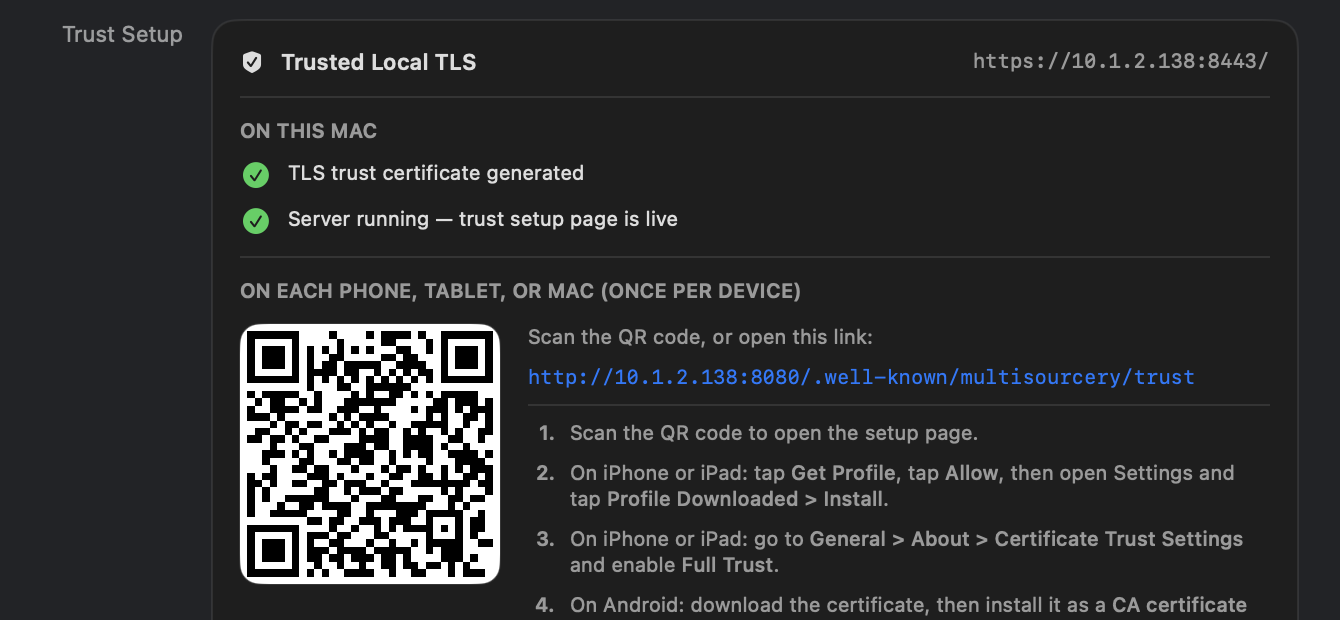
When a Mac shares over HTTPS, each phone or tablet trusts it once. After that, secure shares and Swarm open without certificate warnings.
Use Safari for the profile. Other browsers save it to Files; if that happens, open it from the Files app and it goes to Settings the same way.
- 1On the Mac, open Serving Files → Manage → “Set up a new phone, tablet, or Mac” and scan the QR code.
- 2In Safari, check the code matches the Mac, tap Get Profile, then Allow.
- 3Open Settings, tap Profile Downloaded near the top, then Install.
- 4Go to General → About → Certificate Trust Settings and switch the Mac’s certificate on.
- 5Back in Safari, tap Test Secure Connection. Green means you’re done.
Mac + iPad · Swarm
Send one big file to many devices
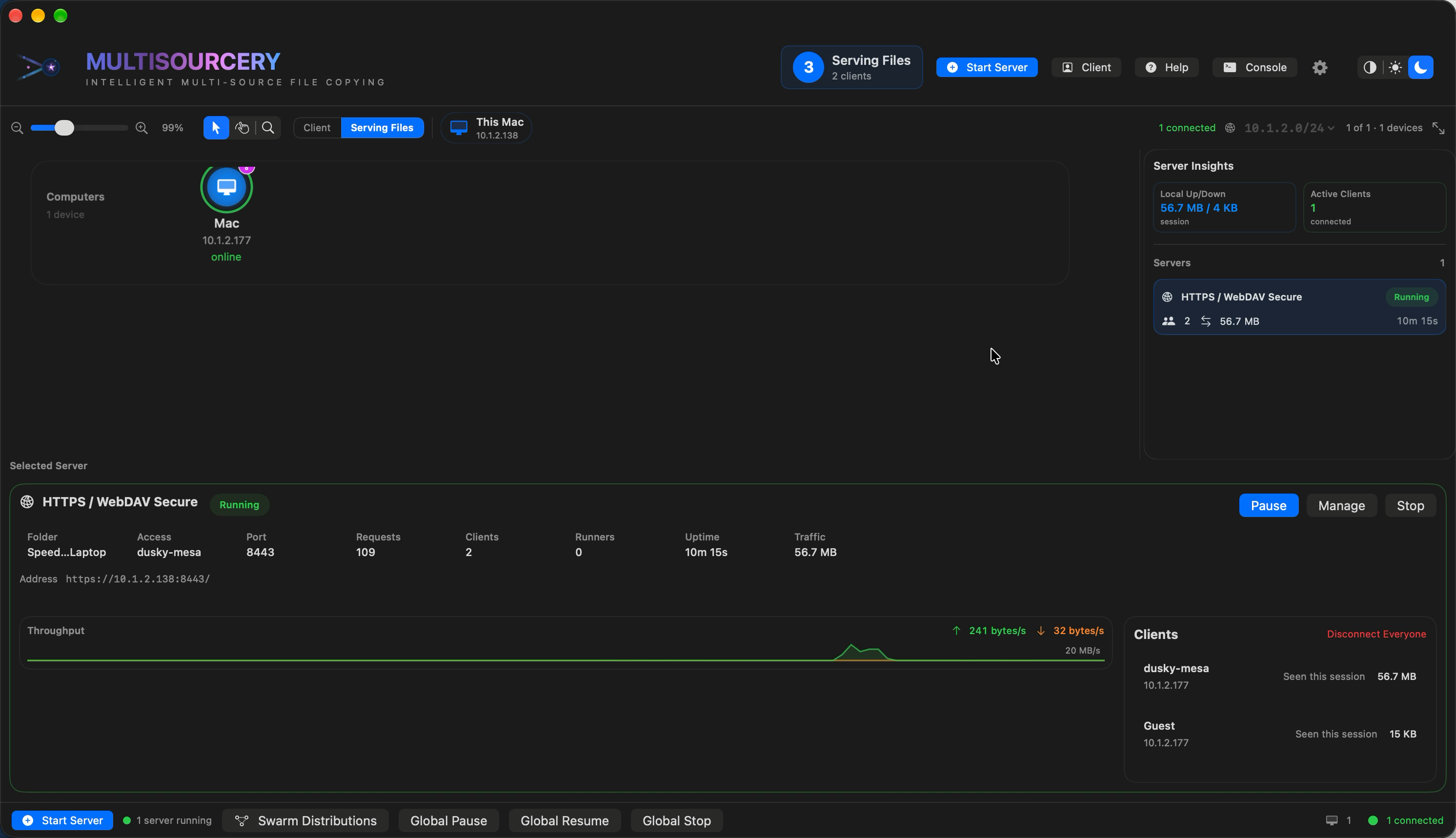
Swarm splits a file into verified parts. Every browser that joins downloads parts and passes them on, so a room full of devices finishes sooner without all of them pulling from one Mac.
- 1Queue the file, open Queue & Go, and press Swarm. Click Distribute next to the file.
- 2Press Copy Client Link and share it, or have people scan the Quick Share code.
- 3On each device, open the link and sign in with the share’s login.
- 4Parts fill in as they arrive. When the bar turns green, tap Save.
Mac · Settings
Calibrate transfers for your hardware
Calibration benchmarks your storage and each protocol, then saves the packet size and runner count that work best. New transfers use those settings automatically.
- 1Open Settings (the gear) and choose Calibration….
- 2Press Run Calibration. It tries several packet sizes and runner counts and compares them with a standard Finder-style copy.
- 3When it finishes, the best result for each protocol is saved. Re-run it after changing drives or networks.