
Help & Troubleshooting
Quick answers and step-by-step guides for MultiSourcery on Mac and iPad.
Using a Mac?
Use the full desktop discovery, saved maps, mirrored locations, client, queue, hosting, and Swarm workflows.
Using an iPad?
Use Browse, Go, and Serving Files. Local folders and external drives are granted through Files, and socket-based hosting runs while the app is in the foreground.
Quick Answers
Getting Started
Follow these steps to set up your first transfer, or watch the video guides.
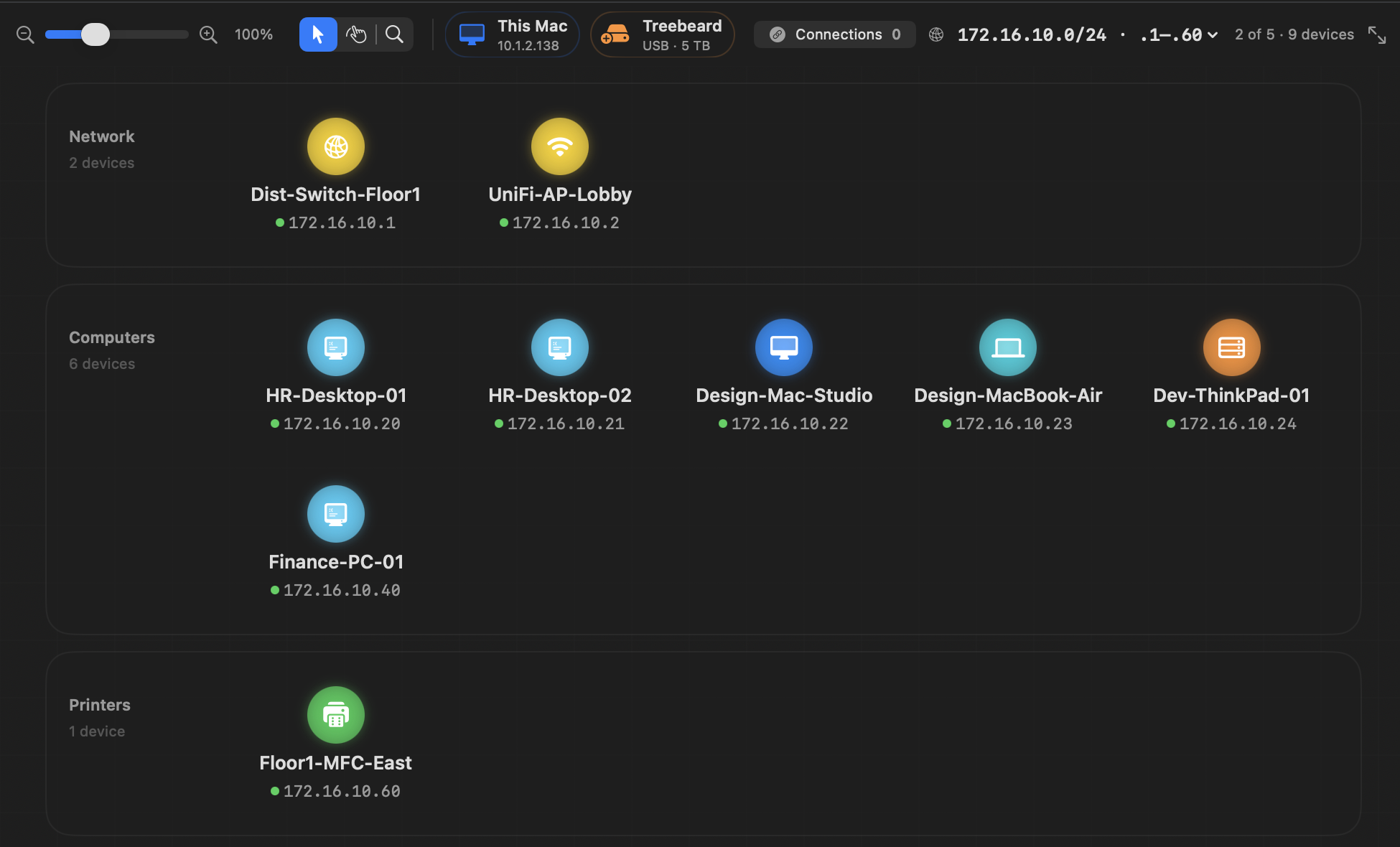
Scan Your Network
Open MultiSourcery, choose Browse, and start a scan. The app combines the discovery methods available on your platform with direct service checks, then merges matching results into one device card. iPadOS asks for Local Network access the first time it is needed.
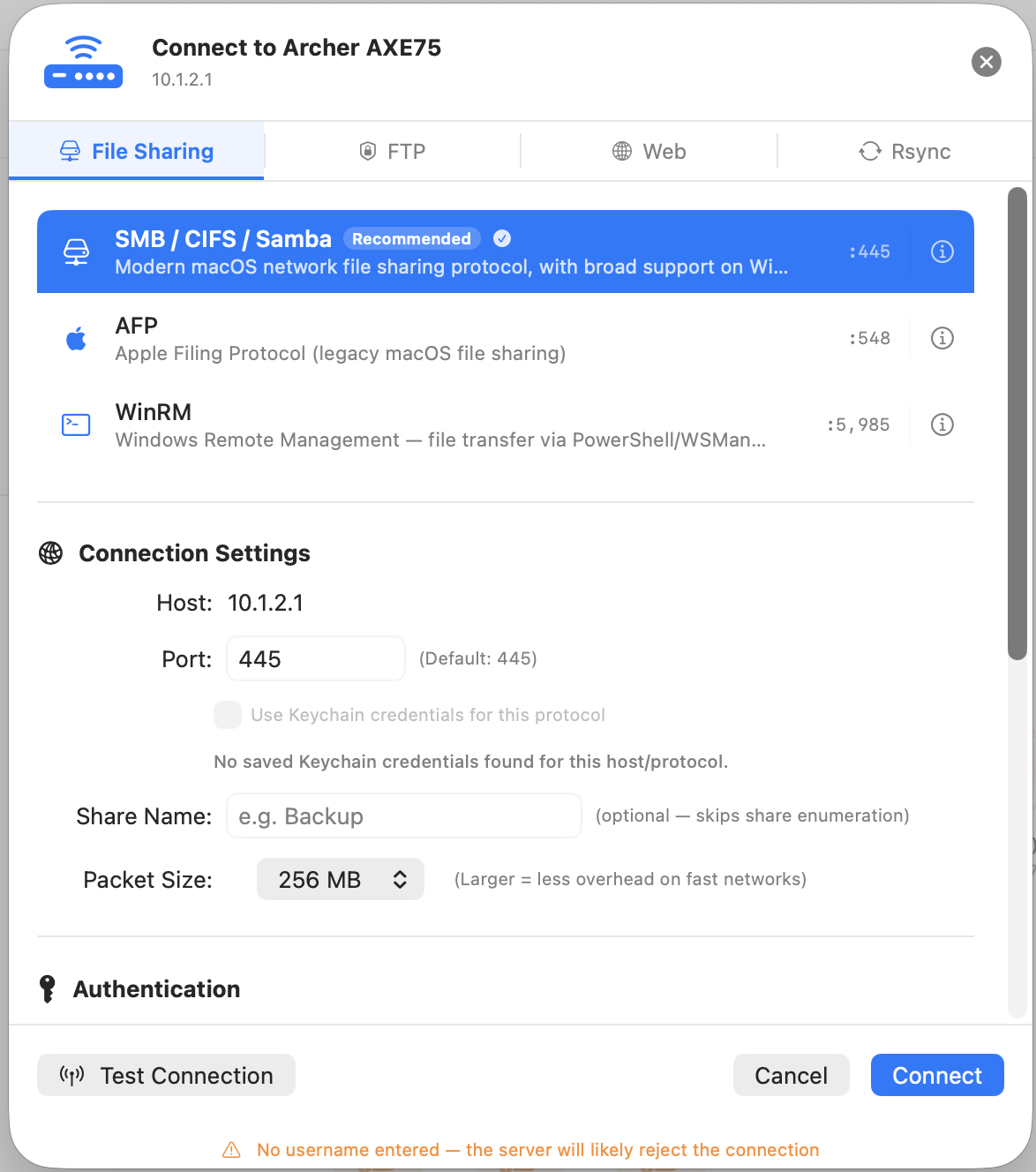
Connect to a Host
Select a host on the topology map to see the protocols it actually exposes. Choose SMB, SFTP, NFS, WebDAV, FTP, rsync, or another available protocol, enter the required credentials, and connect. Credentials can be saved securely in the Apple Keychain.
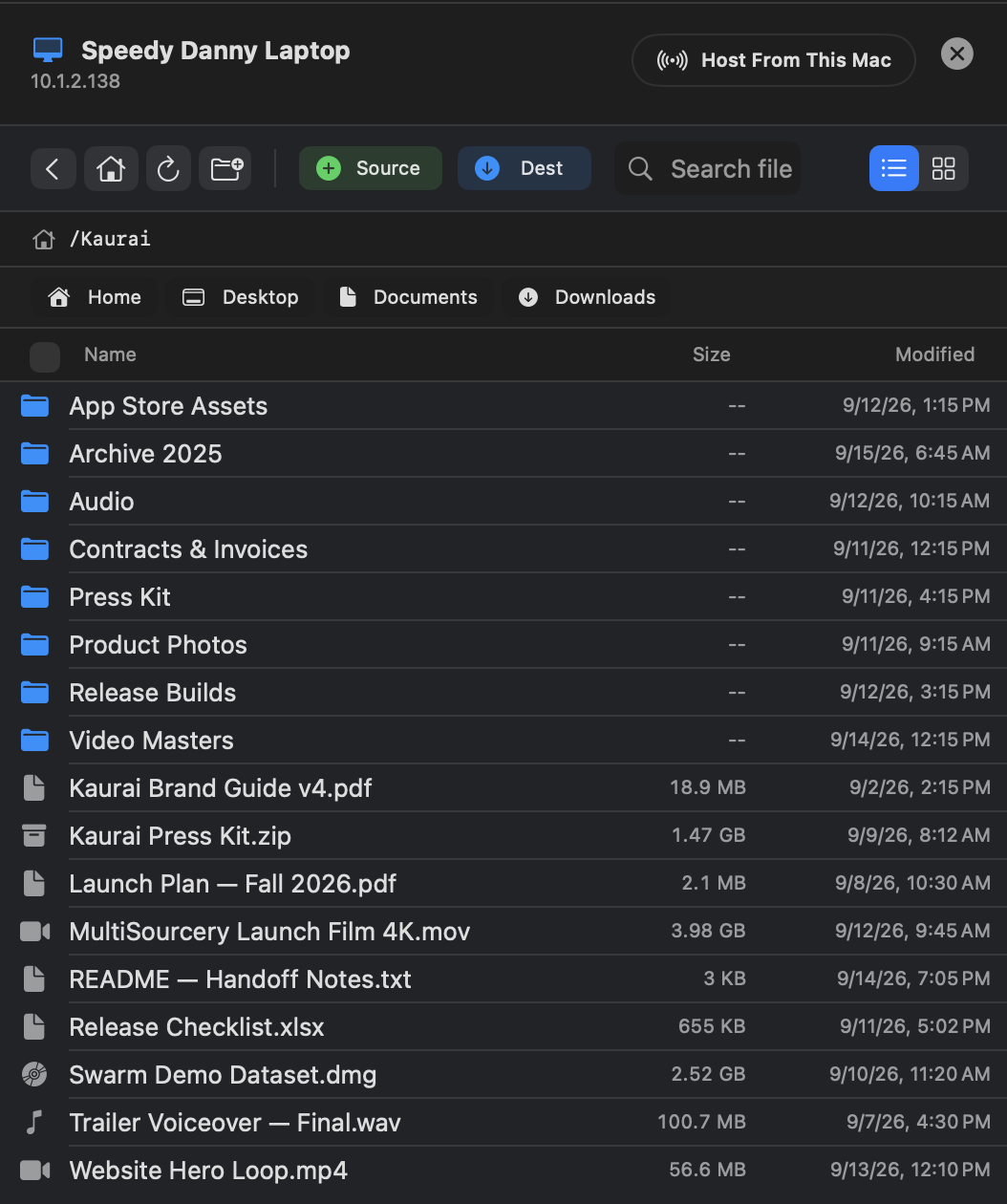
Browse and Select Files
Once connected, the file browser opens in the right panel. Navigate folders and add files to the transfer queue, or set a folder as a destination. On iPad, select My iPad for local files or use Add Drive or Folder to grant access through Files.
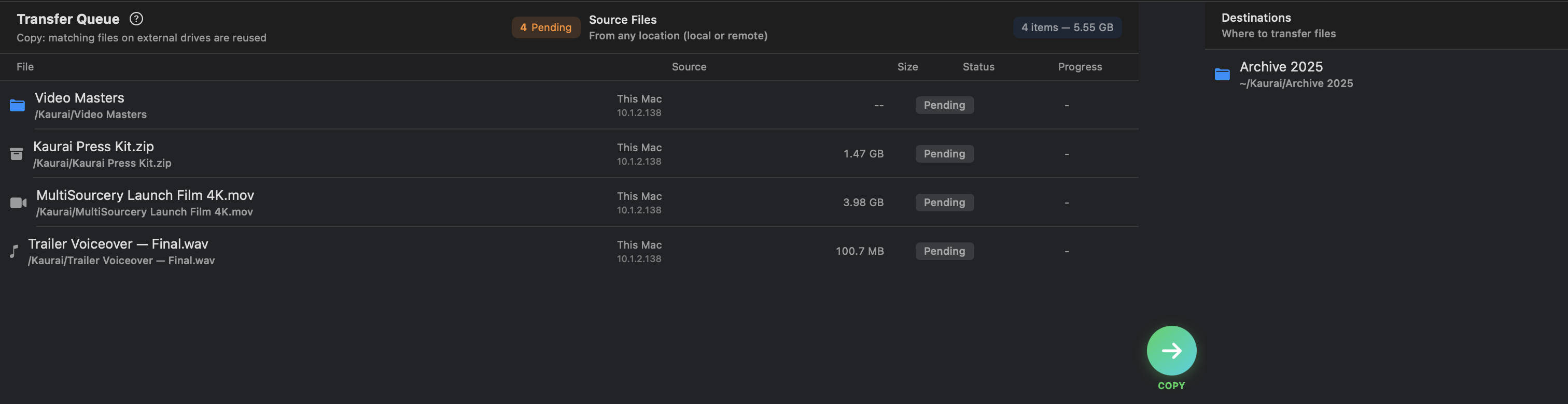
Queue and Add Destinations
Switch to Go to see your source files and add one or more local or remote destinations. Every source is sent to every destination. Review each generated transfer, choose how name conflicts are handled, and pause or retry individual work.
Start the Transfer
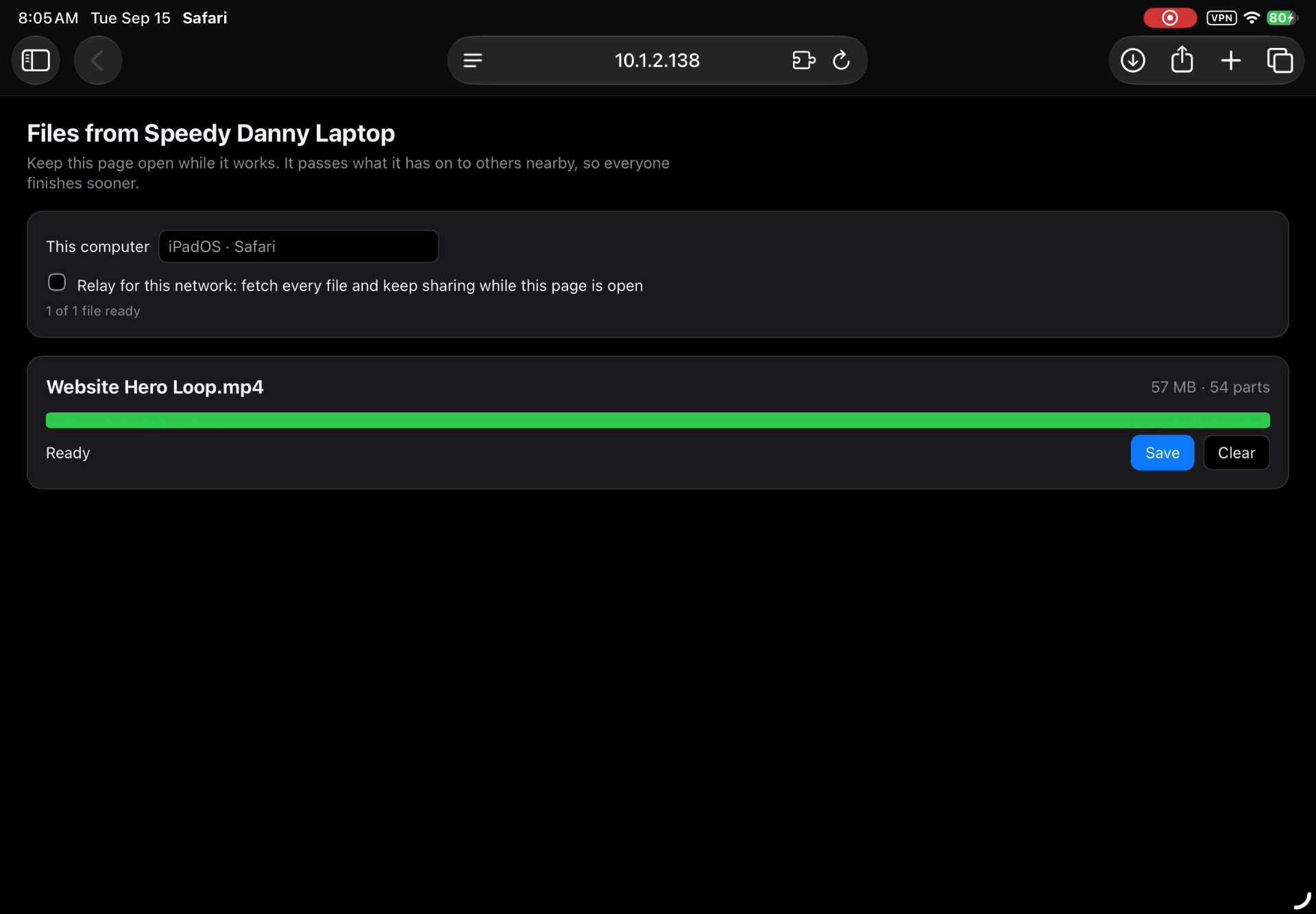
Tap the green Go button to begin, or open Swarm when many people need the same file. Swarm divides the file into verified parts, shows the participating Macs and iPads, and lets you add another MultiSourcery host without a separate deployment tool.